
Please Note: This is not a purchasing guide, as not all printers are compatible with the InBody device. If you are unsure whether a specific printer is compatible, please contact our team at customersupport@inbody.com for confirmation.
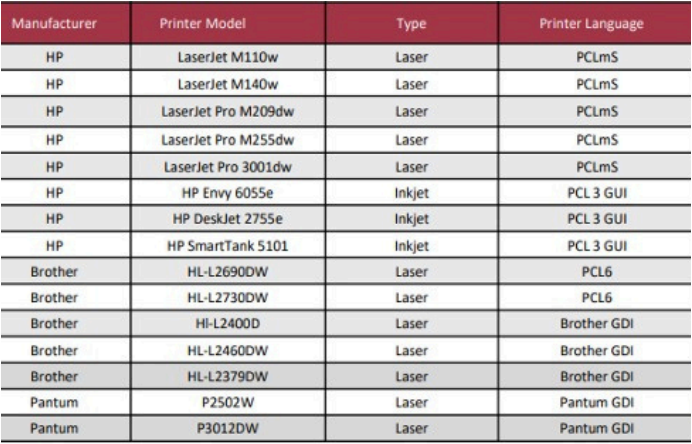
Printer Setup Guide for x80 Devices:
- Please turn OFF both the printer and the InBody unit. While powered off, connect the printer to the InBody device using the provided USB cable.
- Reboot both devices, ensuring that they are powered on.
- On the InBody device, SELECT the SETTINGS icon and INPUT your passcode.
- SELECT “05. Printer and Printer Settings.”
- SELECT “Printer Setup.”
- SELECT “Searching Printer.”
- SELECT the printer of your choice from the list.
- SELECT “Printer Language,” then SELECT “Next.”
- Refer to the list above to choose the correct printer language for your printer.
- Once you have selected the printer language, SELECT “Test Print.”
- If the printer setup is successful, a sample results sheet with test data should print.
- Please confirm that the result sheet printed correctly, then exit the admin menu.
- If the sample test results did not print, SELECT “No” and try a different printer language.
Printer Setup Guide for 270S
- Turn off the InBody scale and printer
- Disconnect the cable between the scale and printer
- Turn on the printer and InBody scale with the cable disconnected
- Once both are fully turned on, connect the printer cable to both the scale and the printer
- Run through the setup menu 09) Printer and choose "Pantum GDI" for the printer language.
- After the printer language has been selected, it will prompt if the printout prints properly, hit the X.
- Important: Now go in and retry selecting the printer language again using "Brother GDI". It should successfully work properly now with Brother GDI selected on the test print.
Printer Setup Guide for other x70 series Devices:
- Please turn OFF both the printer and the InBody unit. While powered off, connect the printer to the InBody device using the provided USB cable.
- Reboot both devices, ensuring they are powered on.
- On the InBody device, SELECT the SETTINGS icon and INPUT your passcode.
- SELECT “09. Printer Setup.”
- SELECT “O” to confirm “Connect printer?”
- SELECT a connection method. To ensure the best possible connection, we recommend using the USB CABLE.
- SELECT “Next.”
- SELECT “O” to proceed.
- Refer to the list above to confirm the proper printer language for your printer.
- Once you've selected the printer language, SELECT "Test Print." If the printer setup is successful, a sample results sheet with test data will be printed.
- Please confirm that the result sheet printed correctly by selecting “O”, then exit the admin menu.
- If the sample test results did not print, SELECT “No” and try a different printer language.