
This guide will walk you through the items you need to complete to setup integration with Guava Health
InBody
1. Do you have an LB Web account?
- No, register from "https://usa.lookinbody.com/Registration/DeviceInformation" and setup your device by following the steps here "http://lbwebfaq.inbodyusa.com/support/solutions/articles/69000669290-how-to-setup-your-unit"
- Yes, proceed to next step
Please note that the API is a paid service and an active subscription is required.
- If your account is currently under trial, please submit payment first via the 'Payment' page and click on 'Do you need an API?'
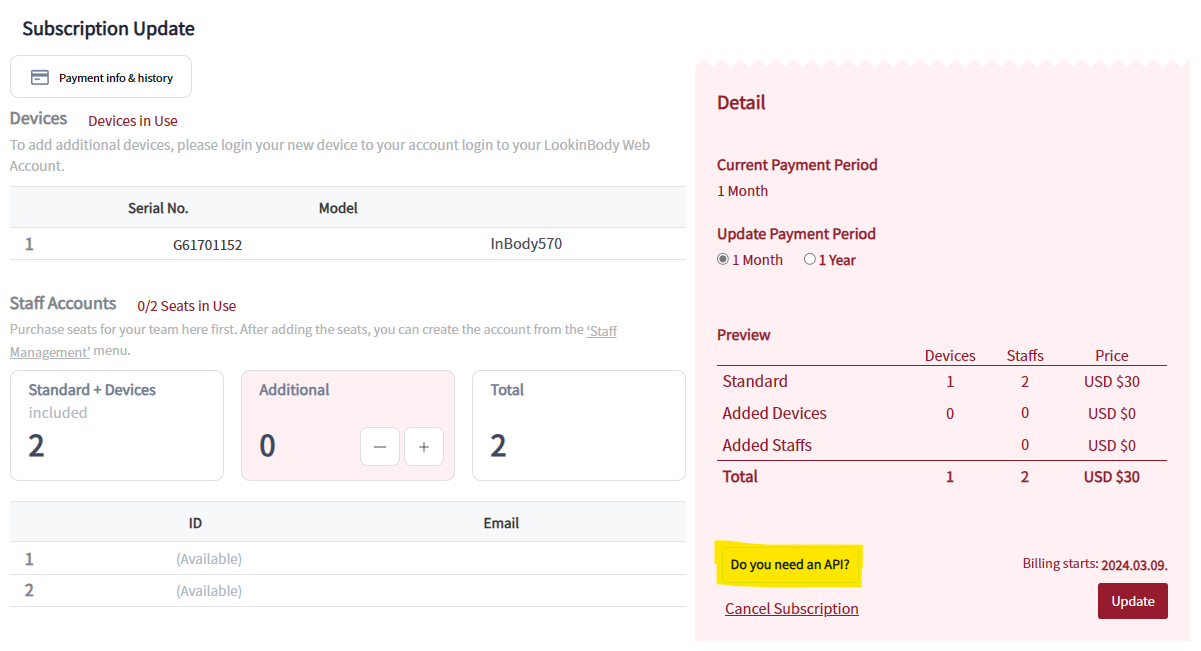

2. Submit API application form "https://inbodyusa.com/api-application-af/"
3. Once approved, log into API site "https://apiusa.lookinbody.com"
4. After logging in, navigate to 'SETUP' and follow the guided steps:
Step 1. Select 'Get a New Key' to Generate your API Key

- From your provider home page in Guava, head to the Integrations tab and select InBody.
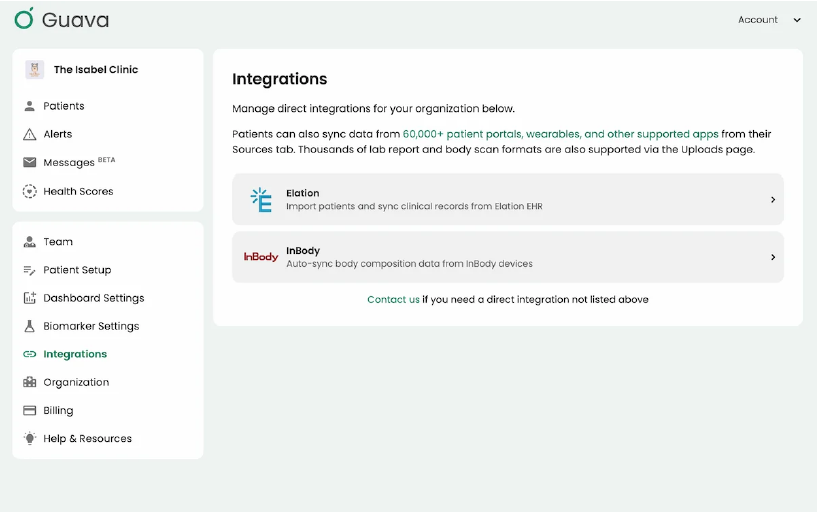
- Follow the steps in your InBody Dashboard, then enter your LookinBody Web account ID (this is what you used to sign in to InBody) and the API key you created into Guava.
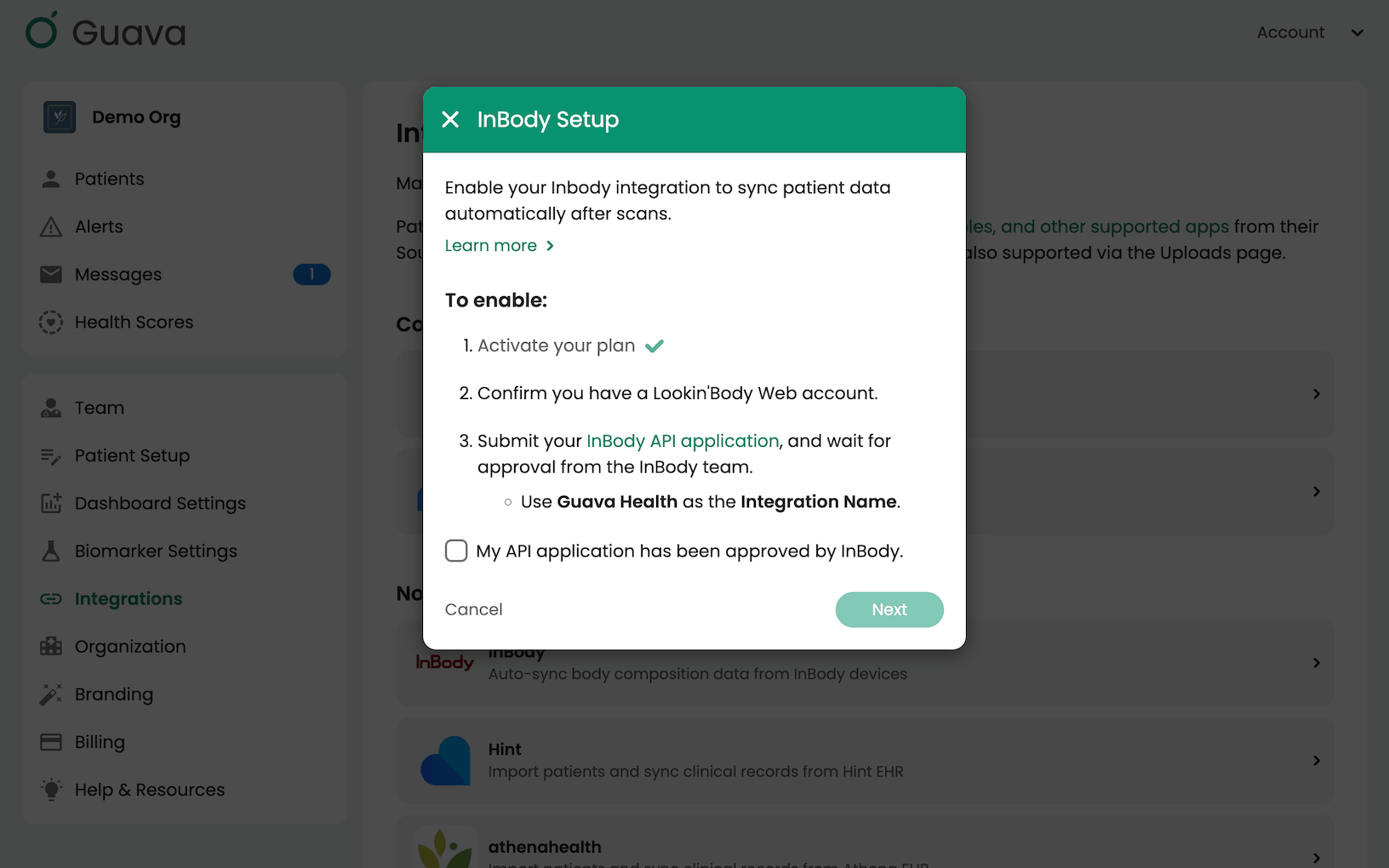
- Follow the steps in your InBody Dashboard, then enter your LookinBody Web account ID (this is what you used to sign in to InBody) and the API key you created into Guava.
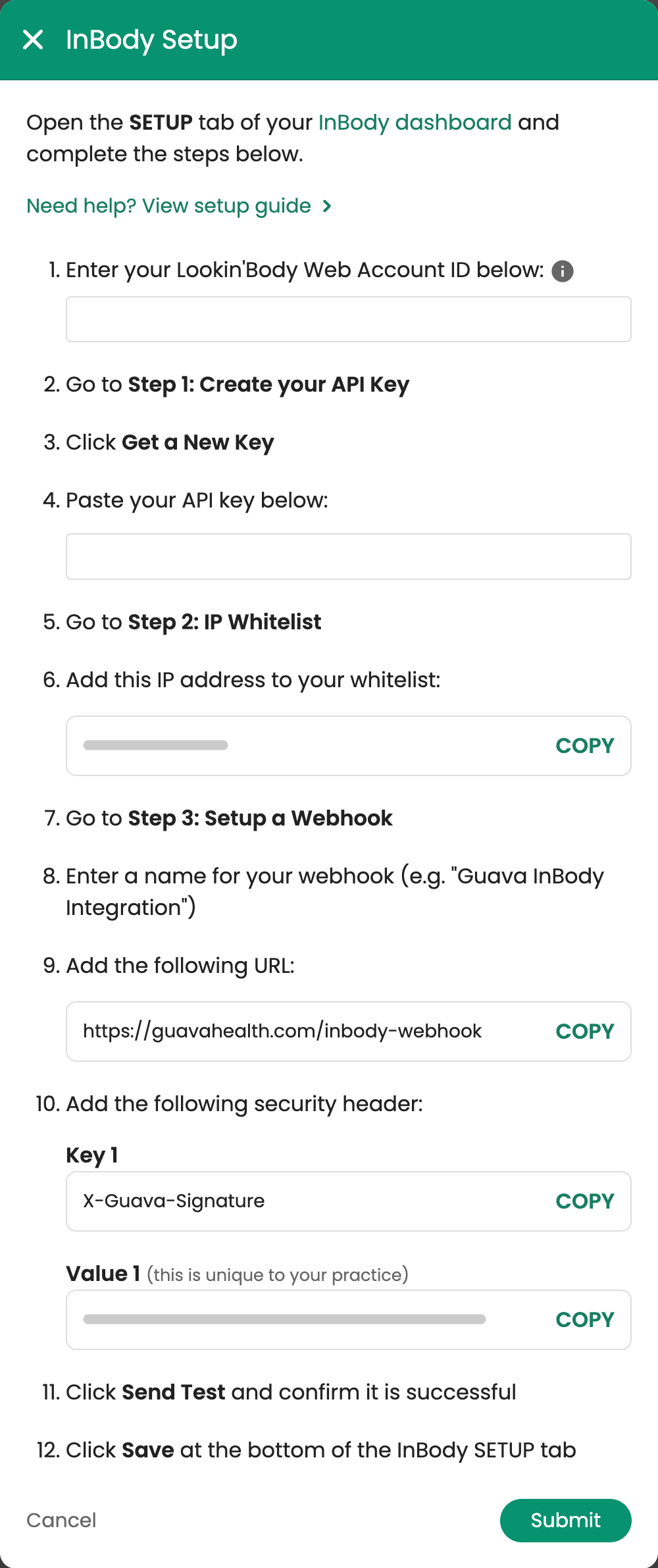
Step 2. Please use the IP Whitelist in the above menu for the step below
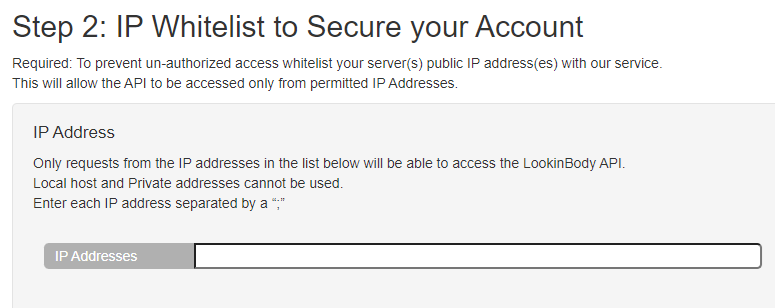
- Copy the IP address from Guava into the InBody IP Whitelist section
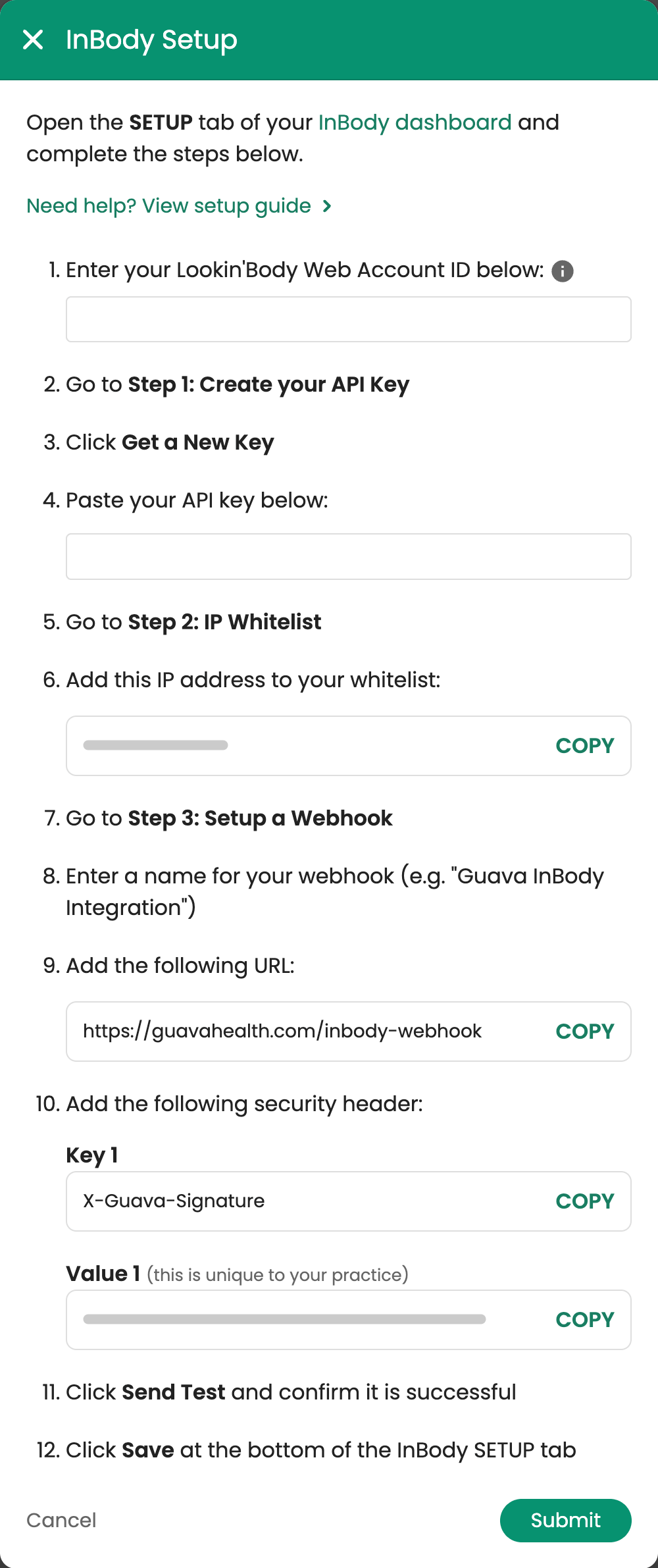
Step 3. Add in your Webhook details, these can also be obtained from your Application Developer

- Follow the instructions on the screen to set up your Webhook, and enter the Key and Value security headers.
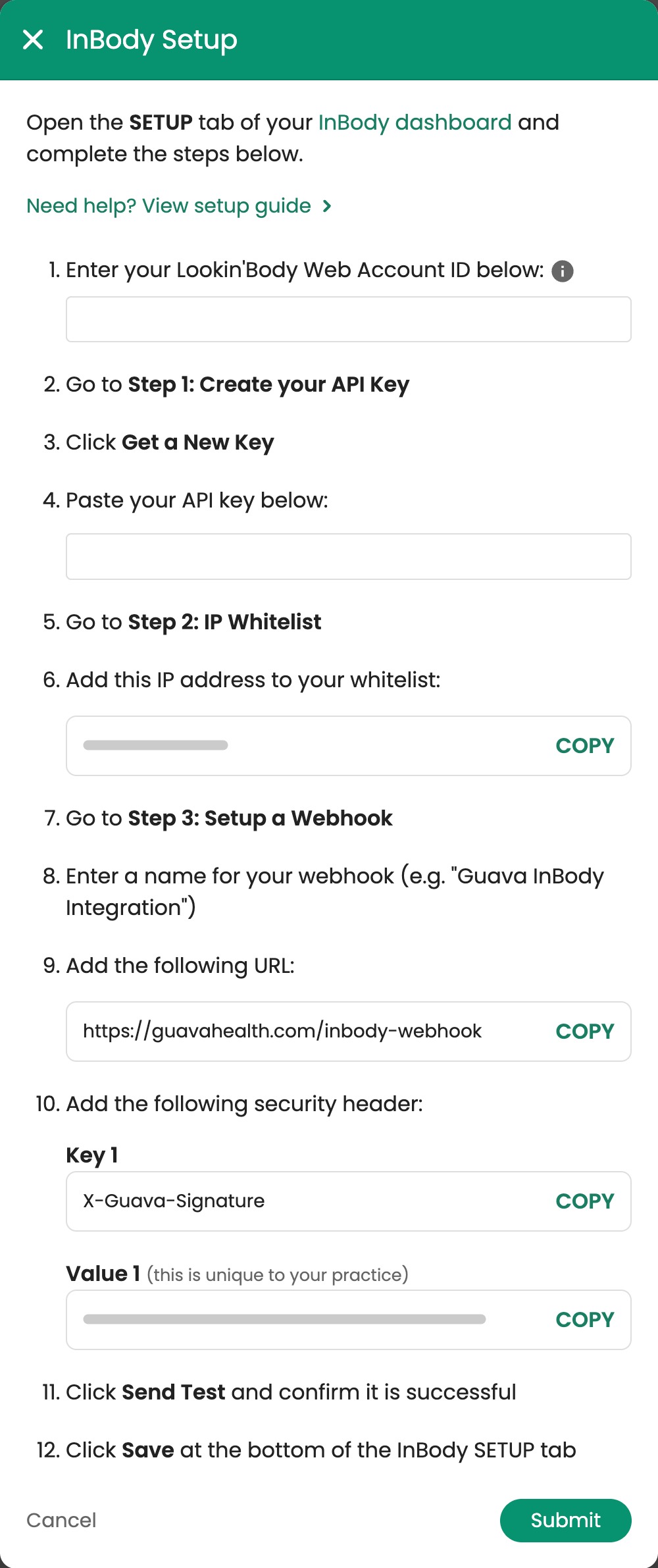
Step 4. Select 'Sent Test' in order to confirm correct settings. Save once confirmed

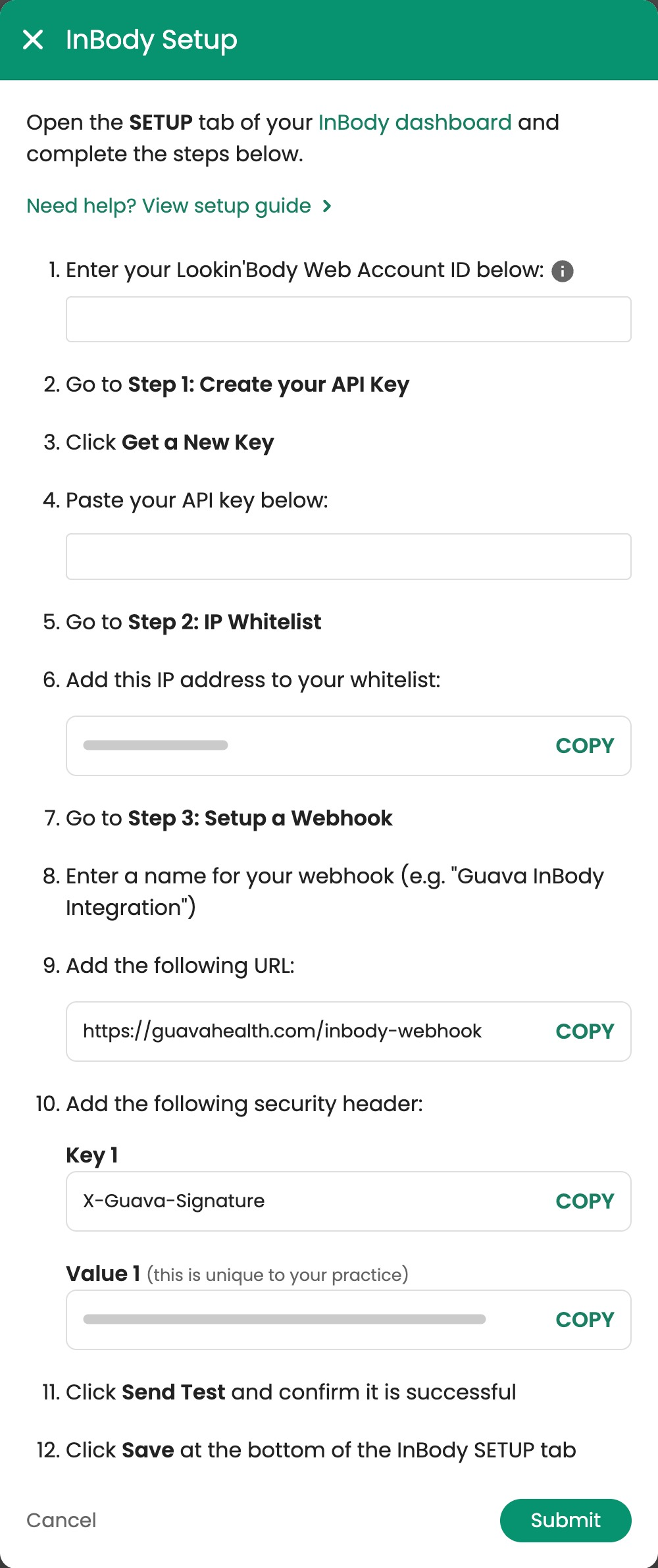
Step 5. After saving in InBody, press 'Submit' in Guava
If you run into any problems, please contact Integration@inbody.com for assistance.
Please refer to Guava Health Documentation page for latest updates: https://guavahealth.com/article/how-to-track-and-share-inbody-results-with-patients-guava