
InBody
1. Do you have an LB Web account?
- No, register from "https://usa.lookinbody.com/Registration/DeviceInformation" and setup your device by following the steps here "http://lbwebfaq.inbodyusa.com/support/solutions/articles/69000669290-how-to-setup-your-unit"
- Yes, proceed to next step
Please note that the API is a paid service and an active subscription is required.
2. Submit API application form "https://inbodyusa.com/lbweb/api-application-af/"
3. Once approved, log into API site "https://apiusa.lookinbody.com"
4. After logging in, navigate to 'SETUP'.
5. Open a separate tab, and log into Prospyr "https://app.prospyrmed.com/"
Preparation: Open the InBody screen in Prospyr.
1. Log into Prospyr and go to Settings --> Integrations --> InBody.
2. At the top, you will see two values that you need to complete the InBody Setup:
| Value | What it's For |
| Prospyr IP Address | LookinBody only accepts API requests from approved addresses. This Prospyr IP address one has to be on your whitelist. |
| Workspace | Where LookinBody sends each completed test. It's unique to your webhook URL practice's workspace. |
Each has a "Copy" button. These items will be needed in the LookinBody Web SETUP page.
Step 1. Click on "Get a New Key" to create a new key.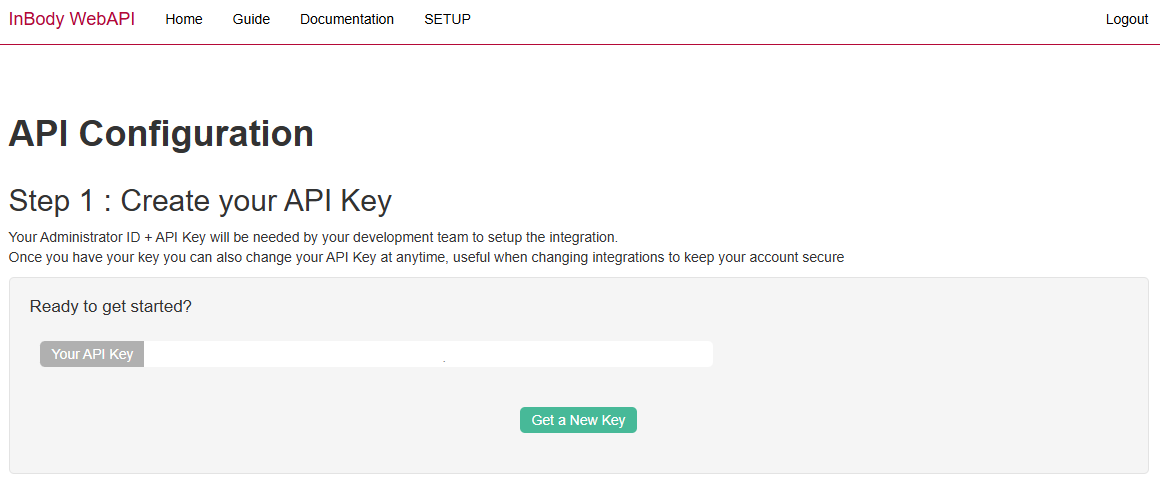
Step 2. Paste the Prospyr IP address acquired from the Prospyr site into the IP addresses field.
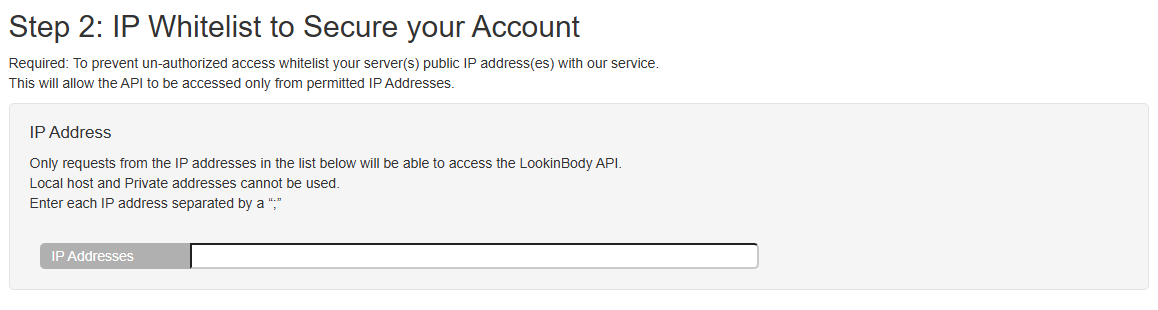
NOTE: Only requests from addresses on this list can reach the LookinBody API — if this step is skipped or mistyped, the connection test in the last step will fail.
Step 3. Set up the Prospyr Webhook.
1. Create a name for your Webhook — Prospyr
2. Provide your webhook server URL — Paste the Workspace URL you copied from the Prospyr site. Paste it exactly; a trailing space or a truncated URL will fail.
3. Additional headers — You can add a key/value pair here as a shared secret, or to tag a specific location if you run more than one. Leave it blank otherwise.

Step 4. Select 'Sent Test' in order to confirm correct settings. Save once confirmed.

Step 5. Return to Prospyr to finalize setup.
Back in Prospyr, on the same Settings → Integrations → InBody screen, find the Account Connection section.
1. LookinBody account ID — your LookinBody Web Admin ID.
2. API key — the key you generated in Step 1.
3. Click Save and verify the connection.
If you run into any problems, please contact integration@inbody.com for assistance.